SPF and DKIM for Microsoft 365: Complete DNS Setup Guide
Microsoft 365 is generally well-behaved for email authentication — SPF is one include, and DKIM uses a pair of CNAME records rather than a raw public key you manage yourself. This guide covers the exact DNS records and where each configuration step actually happens, since Microsoft splits this across DNS and the Defender admin center.
If you're building toward a full DMARC rollout, see What is DMARC? for the complete sequence — SPF and DKIM should both be confirmed working before you move DMARC past monitoring mode.
What you will learn:
- The exact SPF include for Microsoft 365
- The two CNAME records DKIM signing requires, and their exact format
- How to enable DKIM signing in the Defender admin center
- Common mistakes specific to Microsoft 365 setups
SPF setup for Microsoft 365
The SPF include
Standard commercial Microsoft 365 tenants use:
include:spf.protection.outlook.com
If Microsoft 365 is your only sending platform:
example.com TXT "v=spf1 include:spf.protection.outlook.com -all"
Government and sovereign cloud tenants use a different include. GCC High and DoD tenants use include:spf.protection.office365.us, and Microsoft 365 operated by 21Vianet (China) uses include:spf.protection.partner.outlook.cn. Standard commercial tenants — the overwhelming majority of organizations — use the spf.protection.outlook.com value above.
If you also send through on-premises mail servers (a hybrid Exchange deployment) or other platforms, add those alongside the Microsoft include:
example.com TXT "v=spf1 ip4:203.0.113.10 include:spf.protection.outlook.com include:sendgrid.net -all"
Where to publish it
At your domain's root, through your DNS provider. Microsoft doesn't manage this for you — there's no admin center panel for editing SPF, since it's a plain DNS record outside Microsoft 365's own configuration surface.
A note on subdomains
Microsoft's own guidance recommends putting less-controlled sending sources — bulk or marketing platforms you don't directly manage — on a subdomain (like marketing.example.com) with its own separate SPF record, rather than adding them to your primary domain's record. This keeps your primary domain's sending reputation isolated from a third-party platform's, and each subdomain gets its own independent 10-lookup budget. See SPF PermError: The 10-Lookup Limit for why that budget matters.
DKIM setup for Microsoft 365
Microsoft 365 uses a slightly different mechanism than most platforms: instead of publishing a raw public key directly, you publish two CNAME records that point to keys Microsoft manages and rotates on your behalf.
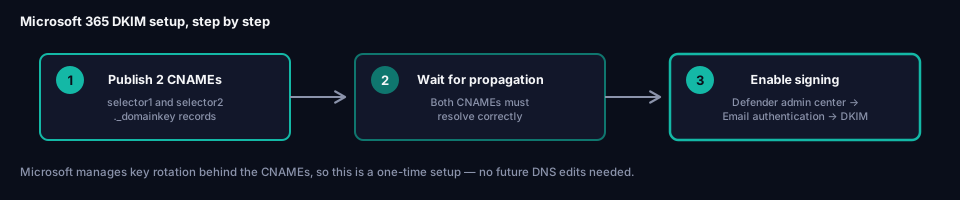
Step 1: Publish the two CNAME records
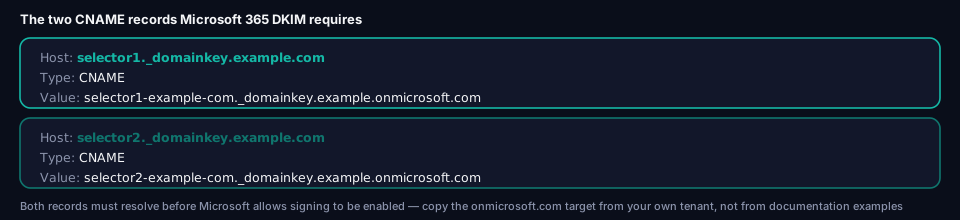
For a domain example.com, publish:
Host:  selector1._domainkey.example.com
Type:  CNAME
Value: selector1-example-com._domainkey.example.onmicrosoft.com
Host:  selector2._domainkey.example.com
Type:  CNAME
Value: selector2-example-com._domainkey.example.onmicrosoft.com
Replace example-com with your actual domain name with dots replaced by hyphens, and example in example.onmicrosoft.com with your tenant's actual onmicrosoft.com subdomain — this exact value is shown to you inside the Defender admin center when you set up DKIM for the domain, so copy it from there rather than constructing it manually.
At most DNS providers, enter just selector1._domainkey and selector2._domainkey as the host — the domain is appended automatically.
Step 2: Enable DKIM signing in the Defender admin center
Go to Microsoft Defender portal → Email & collaboration → Policies & rules → Threat policies → Email authentication settings → DKIM, select your domain, and toggle signing on. Microsoft checks that both CNAME records resolve correctly before allowing you to enable signing — if it fails, double-check the CNAME targets match exactly what the admin center displayed.
Why CNAMEs instead of a raw key
This design means Microsoft can rotate the underlying signing keys on your behalf without you ever touching DNS again after the initial setup — the CNAME always points to whichever key is currently active. This is a meaningful operational advantage over platforms that require you to manually update a TXT record every time a key rotates.
Verifying your setup
Check SPF
dig TXT example.com +short
Confirm include:spf.protection.outlook.com (or the appropriate sovereign-cloud variant) appears in the record.
Check DKIM
dig CNAME selector1._domainkey.example.com +short
dig CNAME selector2._domainkey.example.com +short
Both should resolve to Microsoft-managed onmicrosoft.com targets.
Send a real test
Send a message from a Microsoft 365 mailbox to an account where you can view full headers, and check the Authentication-Results header for spf=pass and dkim=pass, with the d= value in the DKIM signature matching your domain. See Alignment vs Authentication for why this alignment check matters beyond simple pass/fail.
Common mistakes with Microsoft 365
Never enabling DKIM signing after publishing the CNAMEs. The DNS records existing correctly doesn't mean Microsoft is actually signing your mail — that requires the separate toggle in the Defender admin center.
Using the wrong onmicrosoft.com target. The CNAME target is specific to your tenant — copying an example from documentation instead of the value shown in your own admin center results in a record that never resolves correctly.
Mixing up selector1 and selector2 targets. Each CNAME has its own distinct target value; swapping them produces DKIM records that don't verify.
No DMARC record afterward. SPF and DKIM being correctly configured doesn't enforce anything on its own — DMARC is the separate record that actually decides what happens to unauthenticated mail. See What is DMARC?.
Frequently asked questions
Do I need to manage DKIM key rotation myself with Microsoft 365?
No — because DKIM uses CNAME records pointing to Microsoft-managed keys, Microsoft handles rotation on the backend without requiring any DNS changes from you.
What if I use both Microsoft 365 and another mail platform?
Combine both platforms' SPF includes into a single record, and each platform gets its own DKIM selector and CNAME (or TXT) pair — DKIM doesn't require consolidating into one record the way SPF does. See the SendGrid, Google Workspace, or Mailchimp guides if you're combining Microsoft 365 with one of those.
Is spf.protection.outlook.com the right include for every Microsoft 365 tenant?
For standard commercial tenants, yes. GCC High, DoD, and 21Vianet-operated tenants use different includes — check which environment your organization is on before publishing.
Does Microsoft 365 support DMARC natively?
Microsoft 365 supports being authenticated by DMARC — meaning SPF and DKIM configured as above will pass DMARC's checks — but the DMARC record itself is a separate DNS record you publish independently, not something configured inside Microsoft 365. See What is DMARC? for that setup.
Next steps
Once both records verify and a test message passes, check your complete authentication status with grimDMARC's free Domain Scanner. For MSPs managing Microsoft 365 authentication across many customer tenants, Hosted DMARC removes the need to log into each customer's DNS panel individually for policy changes.
About this guide
This guide was written by the team building grimDMARC — a managed DMARC and SPF platform for MSPs and their customers. If you have questions about Microsoft 365 authentication or feedback on this guide, reach us at hello@grimdmarc.com.
Last updated: August 2026 Reading time: 8 minutes Reviewed by: grimDMARC team