SPF and DKIM for Google Workspace: Complete DNS Setup Guide
Google Workspace (formerly G Suite) is one of the more straightforward platforms to authenticate correctly — SPF is a single include, and DKIM setup is handled almost entirely through the Admin console rather than manual key generation. This guide covers the exact DNS records involved and where each step happens.
If you're setting this up as part of a broader DMARC rollout, see What is DMARC? for the full sequence — DMARC should generally go live after SPF and DKIM are both working, not before.
What you will learn:
- The exact SPF include for Google Workspace
- How to generate and publish a DKIM key through the Admin console
- How to verify both records are working correctly
- Common mistakes specific to Google Workspace setups
SPF setup for Google Workspace
The SPF include
Google Workspace's mail-sending infrastructure is authorized through a single include mechanism:
include:_spf.google.com
If Google Workspace is your only sending platform, your complete SPF record is:
example.com TXT "v=spf1 include:_spf.google.com -all"
If you send mail through other platforms too — a marketing tool, a transactional email service — add their includes alongside this one in the same record, since a domain can only have one SPF record total:
example.com TXT "v=spf1 include:_spf.google.com include:sendgrid.net -all"
Where to publish it
This is a DNS TXT record at your domain's root, published through your DNS provider — not inside the Google Workspace Admin console itself. Google doesn't manage your domain's DNS unless you specifically use Google Domains or delegate DNS to Google Cloud DNS.
Lookup cost
include:_spf.google.com costs at least 1 DNS lookup directly, plus whatever Google's own record resolves to internally. See SPF PermError: The 10-Lookup Limit if you're combining this with several other services and want to check your total budget before adding more.
DKIM setup for Google Workspace
Unlike SPF, DKIM for Google Workspace is initiated from inside the Admin console, which generates the key pair for you.
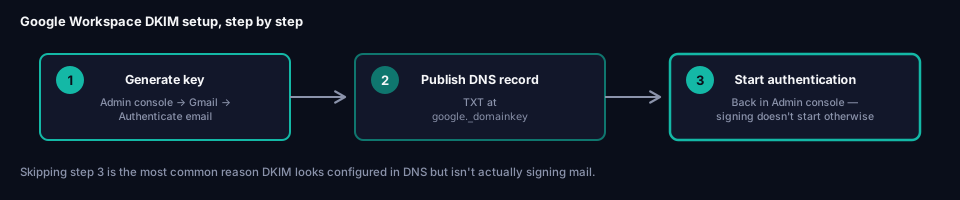
Step 1: Generate the key in the Admin console
In the Google Admin console, go to Apps → Google Workspace → Gmail → Authenticate email, select the domain, and generate a new DKIM key. Google defaults to a 2048-bit RSA key and the DKIM selector google — both are the recommended settings and should generally be left as-is rather than changed. That selector is what puts the published record at google._domainkey.yourdomain.com rather than some other host.
Step 2: Publish the generated TXT record
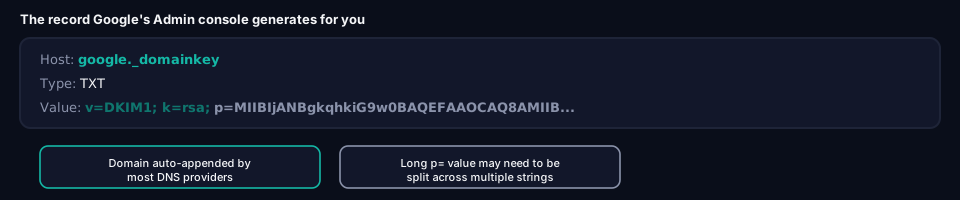
The Admin console displays the exact record to publish, in this format:
Host:  google._domainkey
Type:  TXT
Value: v=DKIM1; k=rsa; p=MIIBIjANBgkqhkiG9w0BAQEFAAOCAQ8AMIIBCgKCAQEA...
At most DNS providers, you only need to enter google._domainkey as the host — the provider automatically appends your domain, resulting in the full record location google._domainkey.example.com. Some providers require the fully qualified name instead; check your provider's convention if the record doesn't verify.
The p= value (the public key itself) is long enough that some DNS providers require it split across multiple quoted strings — most handle this automatically when you paste the full value in. See Every DKIM Attribute Explained for what each part of this record means.
Step 3: Start authentication in the Admin console
Publishing the DNS record alone doesn't turn signing on. Back in the Admin console, after the record has propagated, click Start authentication. Google won't let you enable this until it can successfully resolve the TXT record you just published, which is a useful built-in verification step.
Verifying your setup
Check SPF
dig TXT example.com +short
Confirm include:_spf.google.com appears in the returned record.
Check DKIM
dig TXT google._domainkey.example.com +short
Confirm the record returns and begins with v=DKIM1; k=rsa; p=.
Send a real test
The most reliable check is sending an actual email from your Google Workspace account to a mailbox where you can inspect headers (Gmail's "Show original" feature works well). Look for spf=pass and dkim=pass in the Authentication-Results header, and confirm the d= value in the DKIM signature matches your domain — that's the alignment check DMARC will later depend on. See Alignment vs Authentication for why passing isn't automatically the same as aligning.
Common mistakes with Google Workspace
Forgetting to click "Start authentication." The DNS record can be published and verified correctly, but DKIM signing won't actually begin until this step is completed in the Admin console. This is the single most common reason DKIM shows as configured in DNS but still fails in real mail.
Publishing the record at the wrong host. Some DNS providers auto-append the domain and some don't — entering google._domainkey.example.com at a provider that also appends the domain results in a doubled, non-functional hostname like google._domainkey.example.com.example.com.
Multiple SPF records. If your domain already has an SPF record from a previous setup or another platform's onboarding wizard, adding a second one instead of merging into the existing record invalidates both. A domain can only have one SPF record — see Every SPF Mechanism Explained for how to combine multiple platforms into a single record correctly.
Assuming SPF and DKIM alone are enough. Both need to be correctly configured before DMARC enforcement, but DMARC itself is a separate DNS record you still need to publish — see What is DMARC?.
Frequently asked questions
What DKIM key length does Google Workspace use?
2048-bit RSA is the default and recommended setting when generating a key through the Admin console. There's no reason to choose a shorter key length for a new setup.
What selector does Google Workspace use?
google by default, resulting in a DNS record at google._domainkey.yourdomain.com. You can rotate to a different selector later if needed, but there's no requirement to change it initially.
Can I use Google Workspace alongside other email platforms?
Yes — combine include:_spf.google.com with any other platform's include in a single SPF record, and each platform gets its own DKIM selector, since DKIM doesn't require merging into one record the way SPF does.
Do I need to set up DMARC too?
Yes, eventually. SPF and DKIM authenticate individual messages, but DMARC is what ties their results to your visible From domain and decides what happens to messages that fail. See What is DMARC? for the full rollout sequence.
Next steps
Once SPF and DKIM are both verified and passing, check your complete setup with grimDMARC's free Domain Scanner before moving on to DMARC. If you're managing Google Workspace authentication across many customer domains as an MSP, Hosted SPF removes the need to re-audit each domain's record by hand as sending platforms change.
About this guide
This guide was written by the team building grimDMARC — a managed DMARC and SPF platform for MSPs and their customers. If you have questions about Google Workspace authentication or feedback on this guide, reach us at hello@grimdmarc.com.
Last updated: August 2026 Reading time: 8 minutes Reviewed by: grimDMARC team